
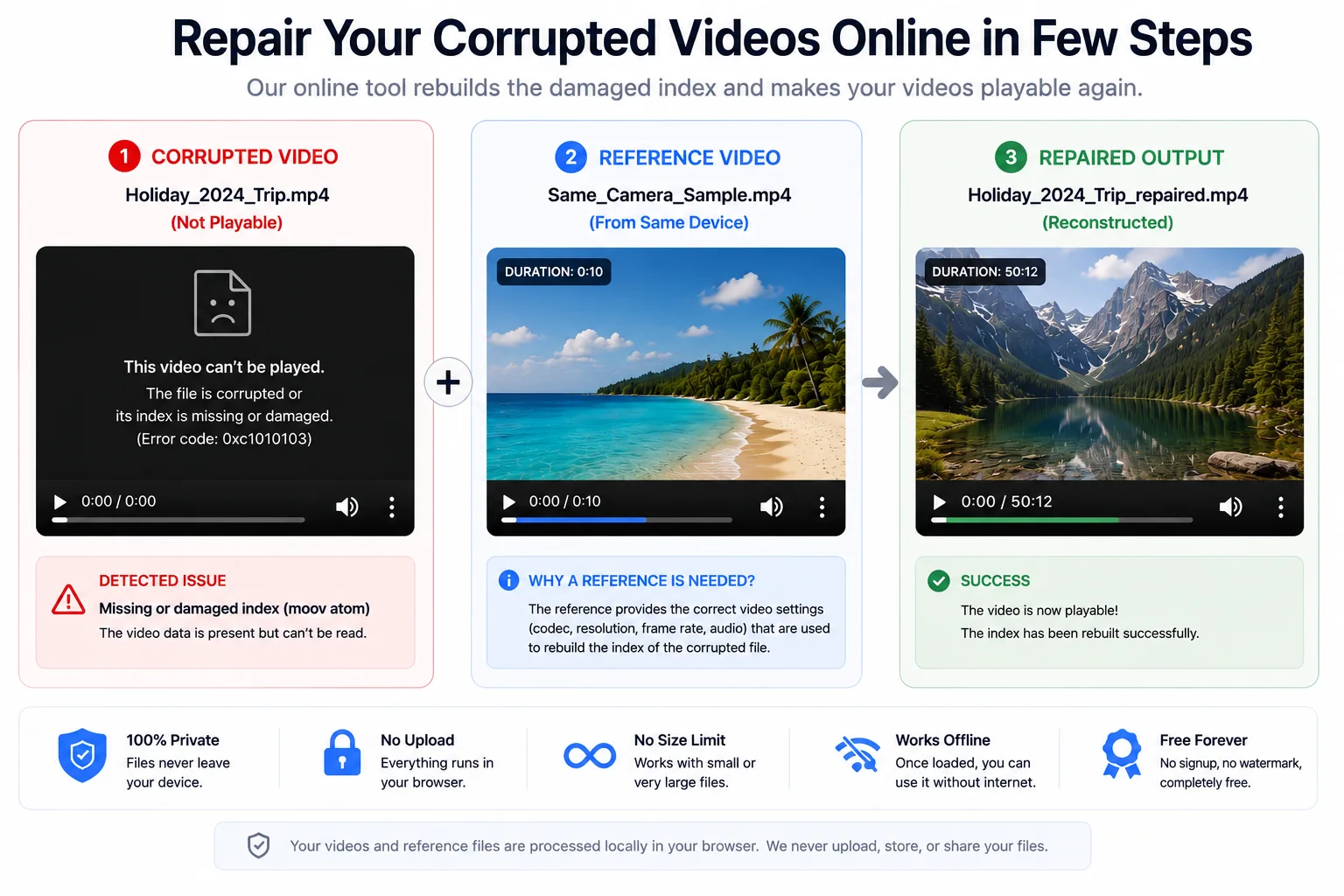
How to repair a video online in 4 steps
- Choose the corrupted videoSelect the MP4, MOV or AVI file that will not play, shows "moov atom not found", has a duration of 0:00, or is much smaller than it should be.
- Choose a healthy reference videoFor MP4 and MOV, pick a working video recorded with the same camera or app and the same settings; it can show a completely different scene. For AVI you can skip this step: the tool detects AVI files automatically and repairs them without a reference.
- Click "Repair video"The tool scans your file, finds every video and audio frame, and rebuilds the missing index. Large files can take a few minutes; the progress bar shows how far along it is.
- Save the repaired fileMP4 and MOV files are saved as a new MP4; AVI files are saved as a new AVI. Your original is not touched. Open the repaired file in a player to check it.
What this video repair tool does
Most "unplayable video" problems are not caused by damaged pictures. When a camera or phone records, it writes the video and sound first and the index last. The index (the moov box in MP4 and MOV files) holds the frame list, timing and codec settings. If recording stops suddenly because of a flat battery, a crash, a pulled memory card or a full disk, the footage is still on the card but the index was never written, so players refuse to open it.
This tool rebuilds that index. It copies the codec settings from your healthy reference video, scans the corrupted file to locate every frame, and writes a new index at the end. The method follows the same principle as open-source tools such as untrunc, but runs in your browser instead of needing an install. Read the technical explanation if you want the details.
The tool is free because it runs on your own device: there is no server to pay for, so there are no upload limits or paid plans. Read why it was built.

What you get
- Video and audioMP4/MOV: H.264 and H.265 plus AAC audio. AVI: any video and audio codec, copied untouched.
- Automatic method switchThe tool recognises MP4, MOV, M4V and AVI from the file itself and uses the right repair method. Covers phones, action cameras, drones, dashcams, camcorders and DVRs.
- Original stays safeThe corrupted file is only read. The repaired video is saved as a new file.
- Direct-to-disk savingIn Chrome and Edge the repaired file is written straight to your drive, so even huge files do not fill your memory.
Local repair vs. upload-based video repair services
| This tool (in your browser) | Typical upload-based service | |
|---|---|---|
| Your video is sent to a server | No | Yes, the whole file |
| Privacy of the footage | Stays on your device | Depends on the provider's policy |
| File-size limit | None imposed by the tool | Often limited by upload size or plan |
| Wait for upload / download | None | Both, which is slow for big files |
What kinds of video damage can it fix?
Problems it is designed for
- "moov atom not found" and other errors caused by a missing or incomplete index (full guide)
- Recordings that stopped because of battery loss, a crash or a removed memory card
- Videos that show a length of 0:00 or cannot be seeked
- Files that are truncated: copying or downloading was cut short but most of the data is there
- MP4 or MOV files whose header or index was damaged while the footage is intact
- AVI files with a wrong header or no index, which many players refuse to open or seek in (see how AVI differs from MP4)
What it cannot fix
- Footage that was overwritten, encrypted by ransomware or never written to disk
- Files with heavy bit-level corruption inside the picture data (you may see glitches or lose frames at the damaged spot)
- Containers it does not read: MKV, WMV, MTS/M2TS and fragmented MP4 streams
- Audio that is not AAC-LC (it is left out, the video is still repaired)
Tips for the best result
- Use a reference from the same device and settings. Same resolution, frame rate and codec. Record a 10-second test clip now if you have no old one.
- Do not use a file that is already repaired or edited. Edited or re-exported videos may use different settings than the original recording.
- Keep the original. Work on a copy or keep the source file until you are happy with the result.
- Large file? Use Chrome or Edge on a desktop. They can save the result directly to disk. Close other heavy tabs.
- Do not close the tab while it is working or saving. The saved file can look empty or unplayable until saving has finished.
Is it really private?
Yes, and you can verify it yourself. The page only downloads its own code. When you click Repair, your file is handed to a Web Worker in your browser, which reads it with the standard File API. There is no upload code in the tool. To check: open your browser's developer tools, go to the Network tab, run a repair and watch that no request carries your video. Or load the page, switch off Wi-Fi and repair a file offline. See our privacy policy.
Guides and specific fixes
Frequently asked questions
How do I repair a corrupted video online for free?
Open this page, choose the corrupted video and, for MP4 or MOV, a healthy reference video recorded with the same device. Click "Repair video" and save the new file. It is free, needs no account and runs in your browser, so there is no upload. AVI files are detected automatically and need no reference.
Is it really free? Any watermark or signup?
Yes. There is no account, no payment, no watermark and no trial limit. The tool runs on your own computer, so there is no server cost for us to pass on to you.
Are my videos uploaded to a server?
No. The repair runs entirely inside your browser tab, in a background Web Worker. Your video is read from your disk in small slices and the repaired file is assembled on your device. The website only serves the page itself. You can confirm this by opening your browser's developer tools (Network tab) while repairing, or by turning off your internet connection after the page has loaded.
What is the "reference video" and why is it needed?
For MP4 and MOV files, a reference is a healthy video recorded with the same camera or app and the same settings (codec, resolution, frame rate, audio). A corrupted recording usually still contains all of its picture and sound, but has lost the index and codec setup that tell a player how to read them. The reference supplies that missing setup, and the tool rebuilds the index by scanning your corrupted file. The reference does not have to show the same scene; a short clip is enough. AVI files are different: they describe themselves, so a reference is needed only if the AVI header itself is destroyed.
Will it fix every corrupted video?
No tool can. This one repairs files whose video data is intact but whose index (the "moov" box) is missing, truncated or damaged, which is the most common result of an interrupted recording. If the video data itself was overwritten, encrypted or physically damaged, the affected parts cannot be recovered. If a part of the file is damaged you may see glitches or lose frames at that point.
Which browsers does it work in?
Current versions of Chrome, Edge, Firefox and Safari on desktop. Chrome and Edge are recommended for large files because they can save the repaired video directly to disk. Mobile browsers work for small files but have little memory for big ones.